Best Mouse Pad for CAD Work at a Drafting Desk

Seven mouse pads compared for CAD drafting, from a 31.5-inch shortcut mat to a gel wrist rest with an 18-month warranty. Which one suits your desk depends on one measurement you probably have not taken yet.

By Lamar CalhounUpdated 18 min read
On this page
- Best mouse pad for CAD at a glance
- How I cut the shortlist, and what got dropped
- Does a printed shortcut mat actually help with CAD?
- 1. Generic CAD Shortcuts XL Mouse Pad — Best overall
- 2. Aoojanu CAD Shortcut Keys Mouse Pad — Best for pros
- 3. excovip Shortcut Mouse Pad for CAD — Most versatile
- 4. MROCO Ergonomic Mouse Pad with Gel Wrist Rest — Best warranty
- 5. Logitech Studio Series Small Mouse Pad — Best minimal setup
- 6. MROCO Essential Office & Gaming Mouse Pad — Best budget pick
- 7. ablieve CAD Shortcut Mouse Pad — Best upgrade
- How much desk space does CAD drafting really need?
- Wrist support or glide surface: which matters more?
- What the listings do not tell you
- The verdict
- FAQ
The best mouse pad for CAD is the Generic CAD Shortcuts XL Mouse Pad, a 31.5 by 11.8 inch desk mat printed with more than 60 AutoCAD commands so the reference sits under your hands instead of on a sticky note. If your desk cannot spare 32 inches of clear width, the ablieve CAD Shortcut Mouse Pad packs the same idea into an 8.27 by 10.2 inch footprint.
Money buys three different things in this category. At the cheap end you get a plain cloth mat with stitched edges and nothing printed on it. In the middle you get either a brand-name surface or a small shortcut card. At the top you get a full-desk mat with a command reference across its whole width.
Best mouse pad for CAD at a glance
| Pick | Working size | Shortcuts printed? | Price |
|---|---|---|---|
Best overall Generic CAD Shortcuts XL Mouse Pad |
31.5 x 11.8 in claim | Yes, 60+ commands claimed | Check Price |
Best for pros Aoojanu CAD Shortcut Keys Mouse Pad |
31.5 x 11.8 in listed | Yes, cheat sheet layout | Check Price |
Most versatile excovip Shortcut Mouse Pad for CAD |
31.4 x 11.7 in | Yes, cheat sheet layout | Check Price |
Best warranty MROCO Ergonomic Mouse Pad with Gel Wrist Rest |
9.4 x 8.1 in | No | Check Price |
Best minimal setup Logitech Studio Series Small Mouse Pad |
9.1 x 7.9 in | No | Check Price |
Best budget pick MROCO Essential Office & Gaming Mouse Pad |
11 x 8.5 in | No | Check Price |
Best upgrade ablieve CAD Shortcut Mouse Pad |
8.27 x 10.2 in | Yes, essential shortcuts claimed | Check Price |





How I cut the shortlist, and what got dropped
Three things knocked candidates out before anything else got weighed.
First, unstitched edges. Every mat that survived here lists stitched or flat-stitch edging, because a raw-cut cloth mat under a mouse that travels the same arc eight hours a day frays at exactly the point your palm rests. Second, no published dimensions. A listing that says "large" and nothing more cannot be compared with one that says 31.4 by 11.7 inches, and a drafting desk is a measured space. Third, mats sold in multipacks of mixed sizes, which make the useful measurement impossible to pin down.
What survived splits cleanly into two families:
- Full-desk shortcut mats. The Generic, Aoojanu and excovip picks all sit near 31.5 inches wide and carry printed commands.
- Standard-footprint cloth mats. The two MROCO pads, the Logitech Studio Series and the small ablieve mat, ranging from 8.27 to 11 inches on the long side.
One honest limitation: Amazon's results for this search do not all match the CAD qualifier. Four of the seven picks here carry no CAD-specific printing whatsoever, and I will not pretend otherwise. The MROCO, Logitech and MROCO Essential mats are general-purpose surfaces that happen to suit drafting work well. Whether a printed command sheet earns its place is a judgment only you can make, and the next section lays out both sides of it.
Does a printed shortcut mat actually help with CAD?
A printed shortcut mat is a reference card the size of your desk. Three of the picks here use that approach, and the honest answer is that it helps a specific person for a specific stretch of time.
It helps most if you are still building muscle memory. AutoCAD rewards typed commands over menu hunting, and glancing down at a printed grid is faster than alt-tabbing to a browser tab. The Generic mat claims more than 60 commands. That is a lot of surface given over to text.
It helps least if you already draft by reflex. A ten-year veteran does not look at the mat, which means the print is just a busy background under the mouse. Worse, dense printing under an optical sensor can occasionally confuse tracking on high-contrast boundaries.
Three questions decide it:
- Do you type commands, or click ribbon icons? Printed mats only pay off for the first group.
- Which CAD package do you use? These listings reference AutoCAD conventions, not Revit, SolidWorks or Fusion.
- Will the reference still be relevant in a year, or will you have outgrown it?
If the answers point away from printing, the best mouse pad for CAD in your case is simply the biggest plain cloth mat that fits your desk.
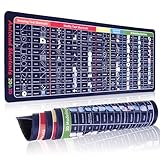
1. Generic CAD Shortcuts XL Mouse Pad — Best overall
A full-width drafting mat with a command reference printed across it, and the most complete answer here for anyone still learning AutoCAD shortcuts.
Best for: learning or relearning AutoCAD keyboard commands at a wide desk Skip it if: your desk is under 32 inches of clear width
What sets this one apart in this group is density of printed reference. The listing claims more than 60 AutoCAD commands across a 31.5 by 11.8 inch surface, which is the widest working area among the seven picks alongside the Aoojanu. That width matters for a reason beyond the printing: it puts your keyboard and mouse on one continuous surface, so a wide sweep across a large drawing never crosses a seam or a desk edge.
It weighs 1.01 lb, heavier than every standard-size mat here and second only to the Aoojanu at 1.32 lb. Weight is not a drawback on a desk mat. It is what keeps a thin 0.04 inch mat flat instead of curling at the corners. The maker says the base is textured rubber and the edges are reinforced with stitching against fraying.
The trade-off is real. This is the most expensive pick here, and no warranty is published. You are paying for printing, not for materials that beat the cheaper mats.
Pros:
- Widest published footprint in this group, 31.5 x 11.8 in
- More than 60 AutoCAD commands claimed on the surface
- 1.01 lb helps a thin mat lie flat
- Stitched edges claimed against fraying
- Covers keyboard and mouse on one surface
Cons:
- The most expensive pick of the seven
- No warranty listed
- Needs a full 32 inches of clear desk width
- Only one seller lists it
- Printing is AutoCAD-specific, not universal across CAD packages
2. Aoojanu CAD Shortcut Keys Mouse Pad — Best for pros
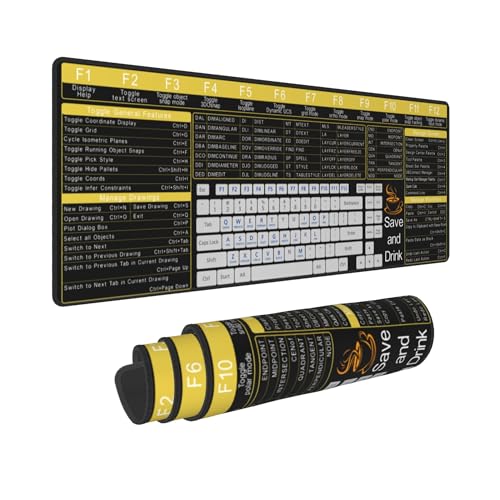
The heaviest mat here at 1.32 lb, with the same 31.5 inch width and a yellow cheat-sheet layout that stays readable in dim light.
Best for: a drafting desk with deep clearance and a full keyboard Skip it if: you want a dark mat that hides marks
Two figures separate this from the winner. It weighs 1.32 lb, the heaviest of the seven, and its colour is listed as yellow rather than black. Both are deliberate choices for a working drafting desk. The extra mass means less shifting when you shove a keyboard sideways to make room for a printed drawing, and a light background makes small command text easier to read under overhead office lighting than white-on-black.
Published dimensions come in at 0.04 x 31.5 x 11.8 in, matching the winner's footprint almost exactly. The listing also mentions a 3mm thickness and a waterproof, anti-slip construction, though the measured dimension given is 0.04 in, so treat the thickness figure as the maker's claim rather than a verified number. Stitched edging is claimed here too.
The catch is the same as with any pale desk mat. Yellow shows graphite smudges, coffee rings and hand oils in a way black does not, and the listing publishes no warranty.
Pros:
- Heaviest mat here at 1.32 lb, resists shifting
- Full 31.5 x 11.8 in published footprint
- Light background improves small-text legibility
- Waterproof surface claimed by the maker
- Stitched edge claimed against fraying
Cons:
- Yellow surface shows marks and stains readily
- No published warranty
- Thickness claims in the listing conflict with the stated dimensions
- Second-highest price position in this set
- Only one seller lists it
3. excovip Shortcut Mouse Pad for CAD — Most versatile
Nearly the same width as the two premium mats at a mid-range price, and the lightest of the three shortcut pads at 0.75 lb.

Best for: someone who wants shortcut printing without the heaviest mat here Skip it if: you need a warranty on paper
This is the middle path among the shortcut mats. Published size is 31.4 by 11.7 inches, a tenth of an inch narrower than the winner, which no hand will ever notice. It sits roughly mid-range for this set on price, making it the cheapest way into a full-desk command reference.
At 0.75 lb it is the lightest of the three extended mats, which cuts both ways. Lighter means easier to roll up and take to a client site or a shared studio desk. It also means marginally less resistance to sliding, though the maker claims a non-slip rubber base. The listing states the pad is washable and that the printing resists fading through repeated cleaning, which is a genuinely useful claim for a surface that lives under two forearms.
Model number is MSP-8030. The colour field simply reads "For CAD", so you are trusting the listing photograph for the actual look. No warranty is published, and that is the clearest gap against the MROCO pads further down.
Pros:
- 31.4 x 11.7 in, effectively full-desk coverage
- Cheapest route to a printed shortcut reference at this width
- Lightest extended mat here at 0.75 lb
- Washable surface with fade-resistant printing claimed
- Hand-sewn edge claimed by the maker
Cons:
- No published warranty
- Colour field gives no usable description
- Lighter build resists shifting less than the 1.32 lb Aoojanu
- Only one seller lists it
4. MROCO Ergonomic Mouse Pad with Gel Wrist Rest — Best warranty
The only pick here with built-in wrist support, backed by an 18-month warranty that none of the shortcut mats can match.

Best for: long drafting sessions that leave your wrist aching Skip it if: you sweep the mouse across large drawings
Nobody buys this one for CAD printing, because there is none. You buy it because eight hours of precise mouse work is a repetitive-strain problem, and this is the only pick in the group that addresses it directly. MROCO says the rest contains soft gel to support the wrist and reduce strain, and that the surface is Lycra cloth for a smooth glide.
The published warranty is 18 months, the longest stated coverage here and one of only three picks with a warranty at all. It measures 9.4 by 8.1 inches with a 0.2 inch thickness, the thickest profile of the seven, and weighs 6.88 oz. The base is described as non-skid PU rather than rubber.
Here is the honest problem for CAD specifically. A gel rest anchors your wrist in one spot, which suits clicking and short movements. Drafting at low mouse sensitivity often means long sweeping strokes, and 9.4 inches of width runs out fast. It also sells faster than any pick here except the MROCO Essential, so it is clearly doing something right for general desk work.
Pros:
- 18-month warranty, the longest published here
- Only pick with an integrated gel wrist rest
- Lycra cloth surface claimed for smooth glide
- One of the two fastest-selling picks in this group
- Non-skid PU base claimed by the maker
Cons:
- No CAD shortcuts printed at all
- 9.4 x 8.1 in leaves little room for long sweeps
- Gel rest fixes wrist position, limiting large arm movements
- Thickest profile here at 0.2 in, a step up from the desk
5. Logitech Studio Series Small Mouse Pad — Best minimal setup
The lightest pad here at 2.6 oz, and the one I would throw in a laptop bag for on-site CAD review.
Best for: a laptop CAD setup you carry between sites Skip it if: you want printed commands to reference
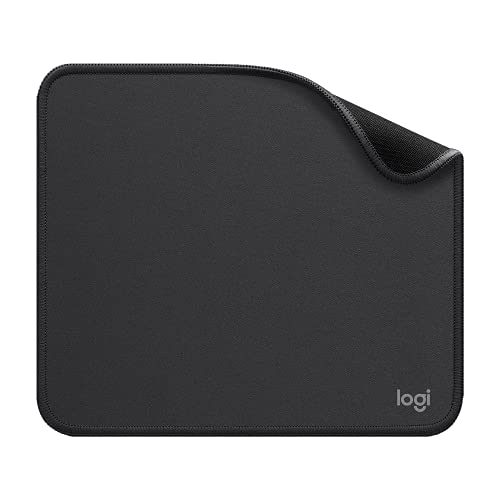
Two numbers explain this pick: 2.6 oz and 0.08 in. That is the lightest weight and the second-thinnest profile in the group, which is precisely what you want in something that lives folded inside a laptop bag. Published size is 9.1 by 7.9 inches, so it takes up less desk than a sheet of letter paper.
Logitech describes a fine-weave cloth surface for silent gliding, a coated spill-repellent finish you can wipe with a damp cloth, and anti-fray flat-stitch edges. The inner layer uses recycled polyester and the base is natural rubber containing latex, worth knowing if latex is a problem in your household. Model is 956-000035, released in 2021. Warranty details are not printed on the listing and must be requested from customer service, which is weaker than MROCO's flat 18 months.
It is also the only pick here that more than one seller stocks. The compromise is obvious: no CAD reference, and less surface than the MROCO Essential for a higher price position.
Pros:
- Lightest pick here at 2.6 oz
- Slim 0.08 in profile packs flat for travel
- Fine-weave cloth surface claimed for silent glide
- Spill-repellent coating claimed by Logitech
- Two sellers stock it, the only pick with more than one
Cons:
- No CAD shortcuts printed
- Smallest surface area of the non-shortcut mats
- Warranty terms not published, only available on request
- Rubber base contains latex
- Costs more than the larger MROCO Essential
6. MROCO Essential Office & Gaming Mouse Pad — Best budget pick
The cheapest of the seven, with an 18-month warranty and more surface than either small brand-name pad.

Best for: a second desk or a spare mat that just works Skip it if: you sweep across a 32-inch monitor at low mouse sensitivity
This one wins on the arithmetic. It is the cheapest pick here, it publishes an 18-month warranty, and at 11 by 8.5 inches it offers more usable surface than the Logitech at 9.1 by 7.9 in or the gel MROCO at 9.4 by 8.1 in. Letter-size is a genuinely sensible footprint for a mouse that lives beside a keyboard rather than in front of it.
MROCO describes a 3mm thickness that evens out uneven desks, a performance-tuned surface tuned for moderate friction, and 360-degree precision stitching against fraying and peeling. There is a waterproof, stain-resistant coating claimed, plus a dense non-slip rubber base. Published weight is 3.2 oz and the stated dimension is 0.12 in thick. Model is Computer Mouse Pad-001, released 2019. It is the pick buyers choose most often in this group.
What you give up is any CAD-specific help. There are no printed commands, no wrist support, and 11 inches is not much room when you are panning across a full site plan at a low DPI setting.
Pros:
- Cheapest pick of the seven
- 18-month warranty published
- 11 x 8.5 in, largest of the standard-size mats
- The one buyers choose most often here
- 360-degree stitched edging claimed
Cons:
- No CAD shortcuts printed
- No wrist support
- 11 in width limits long low-sensitivity sweeps
- Plain black offers nothing the other cloth mats do not
7. ablieve CAD Shortcut Mouse Pad — Best upgrade
The only pick that puts CAD shortcuts on a small footprint, at 8.27 by 10.2 inches, for a desk that cannot take a 31-inch mat.

Best for: a cramped desk where a full-width mat will not fit Skip it if: your keyboard shares the same surface
This pad solves a problem the three extended mats create. Not every desk has 32 free inches, especially a shared studio bench or a corner setup with a monitor arm clamp eating one edge. At 8.27 by 10.2 inches, this is the smallest published footprint here, and it is the only small pad carrying printed commands. The maker describes it as 260 by 210 mm with 2mm thickness, holding what it calls every essential shortcut.
The listed 0.1 in thickness sits between the extended mats at 0.04 in and the gel MROCO at 0.2 in. ablieve claims a natural rubber non-slip base, delicate stitched edges against wear and deformation, and easy cleaning with a damp cloth. It sits at the second-cheapest price position in this set, so the printed reference costs very little here.
Two real gaps. No weight or colour is published, so you cannot judge how well it will stay put. And a small pad by definition carries fewer commands than a 31.5 inch mat with 60-plus printed on it. Warranty is listed as none. It is also the slowest seller of the seven.
Pros:
- Smallest published footprint here, 8.27 x 10.2 in
- Only compact pad with printed CAD shortcuts
- Second-cheapest pick in this set
- Natural rubber non-slip base claimed
- Stitched edges claimed against deformation
Cons:
- Fewer printed commands than the 31.5 in mats
- No published weight or colour
- No warranty listed
- Slowest seller of the seven
- Too small to share with a keyboard
How much desk space does CAD drafting really need?
Measure before you buy. This is the single step most shoppers skip, and it is the one that decides which mat you can actually use.
Take a tape measure to the clear span between your monitor stand and the front edge of the desk, then the width between whatever sits at each end. The three extended mats here need roughly 32 inches of width and 12 inches of depth. That is not unusual for a 60-inch desk. It is impossible on a 40-inch desk with a monitor arm clamp and a docking station.
Depth matters more than most people expect:
- 12 inches of depth or more: any pick here fits, including the Generic and Aoojanu at 11.8 in.
- 8 to 12 inches: the MROCO Essential at 8.5 in deep, the Logitech at 7.9 in, or the gel MROCO at 8.1 in.
- Under 8 inches: the ablieve at 8.27 in on its long side, turned so the shorter edge runs front to back.
Then there is mouse sensitivity. Draft at 800 DPI, common among people who want fine control on dimension grips, and a single cross-screen movement can travel 10 or 12 inches of mat. That alone rules out the small pads for some workflows. Raise your DPI and the small mats work fine, but you trade away some precision on small selections.
Wrist support or glide surface: which matters more?
This is the fork in the road, and the answer depends on which part of you hurts.
If your wrist aches after a drafting session, the gel MROCO is the only pick that addresses it. A cushioned rest raises the wrist and reduces the extension angle you hold while clicking. The 0.2 inch thickness is the thickest here for exactly that reason.
If your shoulder or forearm aches instead, wrist support is the wrong fix. That pain usually comes from a mouse that runs out of room, forcing short repeated corrections instead of one smooth movement. The cure is surface area, which points at the 31.5 inch mats or at least the 11 by 8.5 inch MROCO Essential.
A short checklist to work out which camp you are in:
- Does your mouse hand lift off the pad mid-movement? You need more surface.
- Does your palm feel pressure at the desk edge? You need wrist support.
- Do you reposition the mouse more than twice per pan? You need more surface.
- Do you feel tingling in the fingers? Consider both, and a vertical mouse.
You cannot get both in one product here. No mat in this set combines a gel rest with extended width, so pick the problem you actually have.
What the listings do not tell you
Three things I could not verify from the published data, and you should factor into your decision.
Which CAD package the shortcuts cover. All three printed mats reference CAD generally, and the Generic listing names AutoCAD specifically. If you work in Revit, SolidWorks, Fusion 360 or MicroStation, assume overlap is partial at best. The Aoojanu listing even mixes in Excel spreadsheet references in its own feature text, which suggests the layout is not purely AutoCAD.
How the printing behaves under an optical sensor. Dense printed text with high-contrast edges can occasionally cause tracking hiccups on some sensors. None of these listings publishes sensor compatibility data, so if you use an older optical mouse rather than a modern laser, that is a genuine unknown.
Thickness consistency. The Aoojanu and excovip listings both mention 3mm and 2mm figures in their marketing text while their published dimensions read 0.04 in. Those numbers do not reconcile cleanly. I have quoted the published dimension throughout, but expect the extended mats to feel thin.
Four of the seven picks here also publish no warranty at all, and the three that do are the two MROCO pads and the Logitech, none of which carries CAD printing. That is the uncomfortable pattern in this category: the CAD-specific mats come from small brands with less behind them.
The verdict
Think of the best mouse pad for CAD as three tiers, and pick the tier before you pick the product.
Entry tier. The MROCO Essential Office & Gaming Mouse Pad at 11 by 8.5 inches is the cheapest pick here, publishes an 18-month warranty, and is the mat buyers choose most often in this group. No CAD printing, no wrist rest, but the largest plain surface among the standard-size pads and nothing to go wrong. The ablieve sits just above it and adds a compact printed reference for very little extra.
Middle tier. The excovip Shortcut Mouse Pad for CAD is where the value sits. At 31.4 by 11.7 inches it delivers effectively the same coverage as the premium mats for a mid-range price, with a washable, fade-resistant printing claim. The Logitech Studio Series belongs here too, but only if portability outranks reference material for you.
Premium tier. The Generic CAD Shortcuts XL Mouse Pad takes the win on printed density, with more than 60 AutoCAD commands claimed across a 31.5 by 11.8 inch mat at 1.01 lb. The Aoojanu matches its footprint and beats it on mass at 1.32 lb, and its yellow surface reads more easily under office lighting. That is its exact advantage over the winner, and if legibility is your priority it is the better buy.
FAQ
Is a CAD mouse pad worth the extra money over a plain one?
A CAD mouse pad is worth the extra money if you are still learning commands rather than typing them by reflex. The Generic mat claims more than 60 AutoCAD shortcuts on a 31.5 by 11.8 inch surface, which replaces a browser tab or a printed sheet. If you already draft from memory, the cheapest plain mat with stitched edges does the same job for less.
What is the best mouse pad for CAD if my desk is small?
The best mouse pad for CAD on a small desk is the ablieve CAD Shortcut Mouse Pad at 8.27 by 10.2 inches, the only compact pad here with printed commands. If printed shortcuts do not matter to you, the MROCO Essential at 11 by 8.5 inches gives more usable glide area in a footprint that still sits beside a keyboard rather than under it.
How much desk width do extended CAD mouse pads need?
Extended CAD mouse pads need roughly 32 inches of clear width and 12 inches of depth. The Generic and Aoojanu mats both measure 31.5 by 11.8 inches, and the excovip comes in at 31.4 by 11.7 inches. Measure the clear span between your monitor stand and the desk edge before buying, since a monitor arm clamp or docking station often eats the space you thought you had.
Generic CAD Shortcuts XL or Aoojanu: which should I pick?
Generic CAD Shortcuts XL or Aoojanu comes down to legibility versus stain resistance. Both publish a 31.5 by 11.8 inch footprint. The Aoojanu weighs 1.32 lb against the Generic's 1.01 lb, so it shifts less, and its yellow background makes small command text easier to read. The Generic's black surface hides graphite smudges and hand marks far better over a year of daily use.
What mistake do people make buying a CAD mouse pad?
The mistake people make buying a CAD mouse pad is choosing printed shortcuts before checking their mouse sensitivity and desk dimensions. A shortcut grid you glance at twice a week matters less than surface area you use every minute. At 800 DPI, a single cross-screen pan can travel 12 inches, which no 9-inch pad handles without repositioning your hand.
Start with the tape measure, not the product page. Measure the clear width and depth of your desk, note your mouse DPI, then decide whether printed commands genuinely earn a place in that space. If you have 32 inches free and you are still building command reflexes, the Generic CAD Shortcuts XL Mouse Pad puts the reference exactly where your eyes already are, which is the whole argument for it. If the tape measure says otherwise, the ablieve or the MROCO Essential will serve you far better than a mat you have to fold at one end.