Best Ergonomic Monitor for Students Who Study Long
Five picks compared on eye-comfort features, tilt range, VESA support and study-desk fit, with a clear winner for long homework sessions and honest trade-offs on each.

By Lamar CalhounUpdated 14 min read
On this page
- Best ergonomic monitor for students at a glance
- How I narrowed a crowded field to five
- What actually decides an ergonomic monitor for study
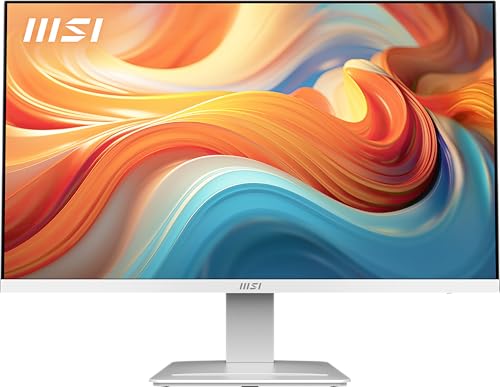
- 1. MSI PRO MP273W E14A — Best overall
- 2. Samsung 22" S30GD — Best premium
- 3. MSI PRO MP251W E2 — Best upgrade
- 4. SANSUI 22" 120Hz Computer Monitor — Most versatile
- 5. tounee Tablet Holder Stand — Best budget pick
- Does screen size or refresh rate matter more for homework?
- How to build a proper ergonomic setup around any of these
- What the listings do not tell you about eye comfort
- The verdict
- FAQ
The best ergonomic monitor for students is the MSI PRO MP273W E14A, a 27-inch IPS panel with TÜV Rheinland Flicker Free and Low Blue Light certification, a 144Hz refresh rate and a 3-year warranty. If your desk is small or you prefer a lighter 22-inch footprint at 4.63 lb, the Samsung S30GD is the better ergonomic monitor for students working in a dorm.
Best ergonomic monitor for students at a glance
| Pick | Screen | Eye-comfort claim | Price |
|---|---|---|---|
Best overall MSI PRO MP273W E14A |
27 in IPS, 144Hz | TÜV Flicker Free, Low Blue Light, Eye-Q Check | Check Price |
Best premium Samsung 22" S30GD |
22 in IPS, 100Hz | Reduced blue light and flicker claim | Check Price |
Best upgrade MSI PRO MP251W E2 |
24.5 in IPS, 120Hz | TÜV certified, Eye-Q Check | Check Price |
Most versatile SANSUI 22" 120Hz |
22 in, 120Hz | Anti-flicker, low blue light, anti-glare claim | Check Price |
Best budget pick tounee Tablet Holder Stand |
Stand, fits 4.7–16.9 in | Raises screen to eye level | Check Price |



How I narrowed a crowded field to five
Students are not officially a category on the monitor aisle, so no listing here promises "for students" outright. That means the qualifier is a judgment call, and I made it explicit before ranking anything.
Three criteria did the work, weighted in this order:
- Eye-comfort features that are actually stated on the listing. Flicker-free certification, low blue light, matte or anti-glare surfaces. Marketing prose without a specification did not count.
- Positioning flexibility. Tilt range, weight, and VESA mount compatibility, because the biggest ergonomic problem on a shared dorm desk is a screen sitting too low.
- Fit for a study desk. Depth of the stand, weight the desk has to hold, and warranty length across a 3- to 4-year degree.
Anything without a published tilt range or a stated eye-comfort feature was cut. That took out a lot of cheap 24-inch panels sold on brightness alone. What survived is a mix: three IPS panels between 22 and 27 inches, one 22-inch monitor with a fuller feature sheet, and one accessory that fixes the single worst ergonomic problem most students actually have, which is a laptop screen sat flat on a desk.
What actually decides an ergonomic monitor for study
Most guides on the best ergonomic monitor for students compare refresh rate. That is not what decides it. Refresh rate matters for shooters and racing games. It does not matter for a Word document.
What decides it is the height of the top of the screen relative to your eyes, and the flicker behaviour of the backlight over a four-hour session. Get the height wrong and your neck loads up within an hour. Get the flicker wrong and the headaches come whether you notice the flicker or not, because the panel is pulsing well above the threshold you can consciously see.
That is why the MSI 27-inch wins. It is TÜV Rheinland Flicker Free certified, it has a stated Low Blue Light mode, its tilt range is -5° to 20°, and it is VESA 100×100 mm mountable, which means you can lift it onto a monitor arm the moment the fixed stand puts the top of the screen below your eyeline. The 144Hz figure is real. It is also almost irrelevant to the reason a student would buy it.
1. MSI PRO MP273W E14A — Best overall
A 27-inch IPS panel with certified flicker-free backlight, a 3-year warranty, and a VESA 100 mount that lets you fix the height when the stand cannot.
Best for: students doing 4+ hour study sessions on one screen Skip it if: your desk is under 20 inches deep
Nothing else here combines a 27-inch panel with the TÜV Rheinland Flicker Free and Low Blue Light certifications MSI lists on this model. The panel is IPS with 178°/178° viewing angles, so an off-centre desk position does not wash the colour out. The refresh rate is 144Hz and response time is 1 ms as claimed on the listing, which matters more for the odd evening off than for study.
The physical numbers are the reason to buy it. It weighs 8.6 lb, its stand base measures 18.5 x 7.91 x 24.2 in, and the tilt range runs -5° to 20°. Those figures matter because the panel is bigger than the alternatives, so the top of the screen sits at roughly eye height on a standard 29-inch desk without stacking books under it. If the desk is shallower than 20 inches, the stand's 7.91-inch depth eats into keyboard space.
MSI's Eye-Q Check is a claimed self-check reminder built into the OSD, not a medical tool. Warranty is 3 years, the longest in this set. Trade-off: it is the largest and heaviest pick here, and a student who moves rooms twice a year may find that annoying.
Pros:
- Largest panel in the set at 27 in
- TÜV Flicker Free and Low Blue Light certified
- 3-year warranty, longest here
- VESA 100 x 100 mm for monitor arms
- 178°/178° IPS viewing angles
Cons:
- Heaviest of the monitors at 8.6 lb
- Stand depth of 7.91 in crowds a shallow desk
- White finish shows dust and marks more than black
2. Samsung 22" S30GD — Best premium
A slim 4.63-lb 22-inch IPS panel that suits a small dorm desk better than anything else here, with the trade-off of a 1-year warranty.

Best for: students who value a lightweight, slim panel on a small dorm desk Skip it if: you need a longer warranty than one year
The Samsung is the lightest monitor in this set at 4.63 lb, and its stand footprint of 15.8 x 6.89 x 19.3 in is the shallowest of the three full-size panels. That matters on a 24-inch dorm desk shared with textbooks, a keyboard and a coffee cup. It is also the only pick here from a name most students already trust with a phone or a TV.
The panel is IPS, refresh rate is 100Hz as listed, and Samsung's listing describes reduced blue light and reduced screen flicker for long sessions. Those claims are not TÜV certified on this listing, which is why it sits second rather than first: MSI publishes the third-party certification for the same behaviour.
The design is genuinely slim with ultra-thin bezels, so two of these side by side make a cleaner dual-monitor setup than any bezel-heavier alternative. The listed released date is 2024. Trade-off: the warranty is 1 year, the shortest of the three monitors with a real warranty stated, and there is no VESA mount detail on this listing, so committing to a monitor arm needs a manual check first.
Pros:
- Lightest monitor here at 4.63 lb
- Slim IPS panel with thin bezels
- Compact 6.89-in stand depth
- 100Hz refresh rate on IPS
- Well-known brand with easy accessory support
Cons:
- Only a 1-year manufacturer warranty
- Eye-comfort claims are not TÜV certified on the listing
- No VESA mount spec published on the listing
3. MSI PRO MP251W E2 — Best upgrade
A 24.5-inch IPS panel with TÜV certification and MSI's 3-year warranty, sized right for the middle ground between dorm and apartment desks.

Best for: students upgrading from a laptop to a proper desktop screen Skip it if: you want the largest possible viewing area
The 24.5-inch middle size is the one most students should buy if the 27-inch feels like too much desk. The panel is IPS with 178° wide viewing angles, refresh rate is 120Hz, response time is 1 ms as listed, and MSI lists the same TÜV eye-comfort certification and Eye-Q Check reminder as the 27-inch model. Warranty is 3 years, the joint-longest here.
The physical figures put it between the other two monitors: 10.1 lb weight, 16.4 x 7.4 x 22 in stand footprint. The weight is actually the highest of the three monitors, which is worth knowing before you order a cheap monitor arm rated only to 8 lb. VESA mounting is supported. Released 2024.
The reason this sits at third rather than first is size. On a proper study desk with the panel positioned about arm's length away, 27 inches gives you room for two documents side by side without shrinking the type. At 24.5 inches you can do it, but the font gets small. Trade-off: mid-price positioning here, so it costs more than the entry pair without giving you the extra inches the winner does.
Pros:
- 3-year warranty matches the winner
- 120Hz IPS with 1 ms response time
- TÜV certified eye-comfort features
- VESA mount supported for arms
- Slim four-side bezel
Cons:
- Heaviest of the three monitors at 10.1 lb
- Middle size gives up screen area to the 27-in
- White stand shows scuffs on shared desks
4. SANSUI 22" 120Hz Computer Monitor — Most versatile
A 22-inch entry-price panel with claimed 100% sRGB, 120Hz refresh and dual HDMI, at the cost of a short parts warranty.
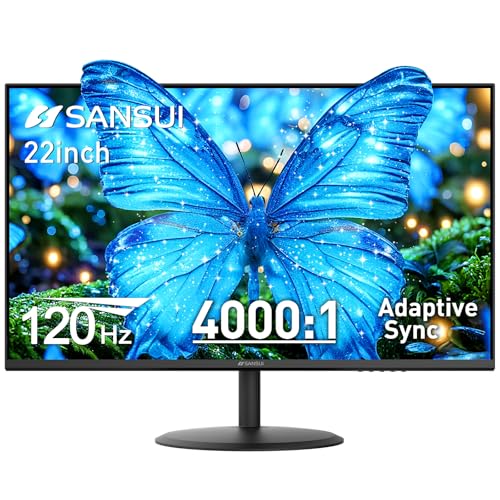
Best for: students on a tight budget who still want 100% sRGB and 120Hz Skip it if: you want a warranty longer than 30 days for parts
SANSUI ranks it "most versatile" because of the connectivity, not the panel. The listing calls out dual HDMI 1.4 ports both running up to 120Hz, which means a student can leave a laptop connected to one input and a games console or a housemate's Switch on the other, and swap between them from the on-screen menu instead of unplugging cables. VESA support is 75 x 75 mm, which is smaller than the 100 x 100 mm the MSI panels use, so monitor arms need checking for the smaller pattern.
Panel is 1920 x 1080 FHD at 120Hz with claimed 100% sRGB and HDR mode. SANSUI lists anti-flicker, low blue light and anti-glare coating for eye comfort, but does not publish a third-party certification for those. Tilt runs -5° to 22°, weight is 6.65 lb, footprint is 14.1 x 8.27 x 19.4 in.
The warranty is the honest weakness. The listing describes a 30-day money-back and free replacement window from order date plus lifetime technical support. Beyond that first month, support means advice, not a new panel. Trade-off: entry price for a fuller feature sheet than the Samsung, at the cost of the longer coverage MSI and Samsung both offer.
Pros:
- Dual HDMI 1.4 at 120Hz for two devices
- Claimed 100% sRGB colour coverage
- Cheapest full-size monitor here
- Wider tilt range at -5° to 22°
- Anti-glare coating listed
Cons:
- 30-day replacement window, shortest here
- Eye-comfort claims not third-party certified
- Smaller 75 x 75 mm VESA pattern
5. tounee Tablet Holder Stand — Best budget pick
Not a monitor, but the cheapest way to fix the single worst ergonomic mistake most students make with the screen they already own.
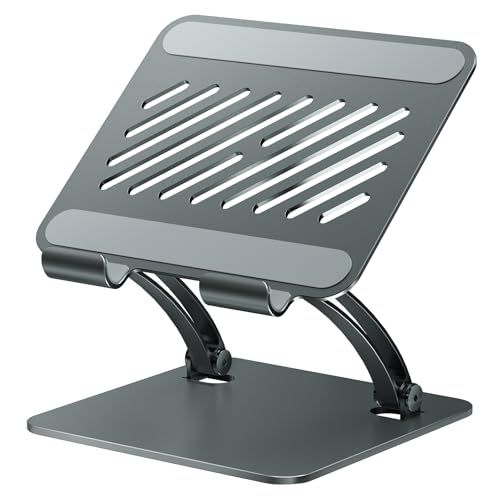
Best for: students pairing a laptop or tablet as a second screen at eye level Skip it if: you need a full desktop monitor rather than a stand
This pick is honest about its category. It is a tablet and portable-monitor stand, listed for devices from 4.7 to 16.9 in, with an aluminium body and anti-slip silicone pads. The stand itself measures 2 x 7 x 2 in folded and pairs with a locking mechanism the listing describes for height and angle adjustment. Warranty is 1 year.
It earns a place in a monitor guide because the most common ergonomic problem for a student is not the monitor at all. It is a 14-inch laptop screen sitting flat on the desk, which puts the top of the screen five to seven inches below where it should be. A stand of this size lifts a laptop or tablet closer to eye level, and pairs well with any of the monitors above as a second display when you need to keep lecture notes open while writing.
Trade-off: a stand cannot fix a screen that is too small to read comfortably. If your only screen is a phone or a small tablet, a proper monitor is the right buy and the stand is a companion, not a substitute. The tounee is cheapest of everything here, and priced right for what it does.
Pros:
- Cheapest pick in the set
- Aluminium build with silicone anti-slip pads
- Fits screens from 4.7 to 16.9 in
- Folds flat for a rucksack
- Fixes a laptop that sits too low
Cons:
- Not a replacement for a desktop monitor
- No use if you already have a raised monitor
- Only a 1-year warranty
Does screen size or refresh rate matter more for homework?
For homework, screen size matters more, and it is not close. A 27-inch panel lets you place a PDF of a textbook next to a Word document without either one shrinking below comfortable reading size. A 22-inch panel forces you to alt-tab or shrink one side.
Refresh rate above 60Hz makes cursor movement and scrolling smoother, and 100Hz to 144Hz is a real improvement over the 60Hz built into most laptop screens. But the improvement is aesthetic. It does not change how much homework fits on the screen, and it does not change how tired your eyes are after three hours.
The exception is dual-screen work. If you are running two monitors side by side, two 22-inch panels can give you more usable desktop area than one 27-inch, at the cost of a bezel down the middle and a wider desk requirement. The Samsung and the SANSUI are both slim enough to make that work. The MSI 27-inch is a better single-monitor answer.
How to build a proper ergonomic setup around any of these
The monitor alone does not make the setup ergonomic. Four things do, and none of them cost much once the panel is on the desk.
- Top of the screen at eye level or slightly below. Every monitor here tilts. Not every stand raises high enough. If the top of the screen sits below your eyes, use the VESA mount on the MSI panels with a monitor arm, or stack the base on a sturdy shelf.
- Screen roughly arm's length away. Closer than that and your eyes overwork. Farther and the text shrinks.
- A separate keyboard, not the laptop's own. A raised laptop screen is only ergonomic if you are not also reaching up to its keys.
- Break the session. MSI's Eye-Q Check reminder on the two MSI panels is a nudge, not a fix. A 20-second look at something 20 feet away every 20 minutes does more.
Numbered because the order matters. Fix the height first, then the distance, then the input, then the habit. Getting one right without the others is not much help.
What the listings do not tell you about eye comfort
Certifications like TÜV Rheinland Flicker Free describe how the backlight behaves, not how bright the panel is set. A flicker-free monitor set to full brightness in a dark room is still uncomfortable. Every panel here has an OSD with brightness and contrast controls. Turn brightness down until the white of a Word document matches the white of a piece of paper held next to it. That is the setting eye-comfort features are designed to work at.
Blue-light reduction, whether TÜV certified as on the two MSI panels or listed as a mode as on the Samsung and SANSUI, warms the colour temperature. It looks slightly yellow at first, then normal after ten minutes. Turn it on for study, off for anything colour-critical.
Matte or anti-glare coating, called out on the SANSUI listing, matters more in a bright dorm than a dim library. A gloss screen next to a window becomes a mirror by mid-morning.
The verdict
The best ergonomic monitor for students is the MSI PRO MP273W E14A. It combines the largest 27-inch panel in this set with TÜV Rheinland Flicker Free and Low Blue Light certification, a -5° to 20° tilt range, VESA 100 x 100 mm mounting, and the longest warranty at 3 years. Those four things together decide the category, and no other pick here matches all four.
Two conditions flip the recommendation. First, if your desk is shallower than 20 inches or you move rooms often, the Samsung S30GD at 4.63 lb and a 6.89-inch stand depth is the better ergonomic monitor for students in a dorm. Its 1-year warranty is the compromise. Second, if you already own a laptop you like but it sits flat on the desk, spend a fraction of the money on the tounee stand first and see whether raising the existing screen fixes the problem before buying a panel at all.
The MSI 24.5-inch is the honest third choice, the SANSUI the entry-price answer for a student who needs dual HDMI more than a long warranty.
FAQ
Is a 27-inch monitor too big for a student desk?
Is a 27-inch monitor too big depends on desk depth, not screen size. The MSI 27-inch here has a stand base of 18.5 x 7.91 x 24.2 in and weighs 8.6 lb, which sits comfortably on a desk 24 in deep or more. On a shallower dorm desk, a 22-inch or 24.5-inch panel keeps room for a keyboard.
What ergonomic features actually matter for long study sessions?
Ergonomic features that actually matter are screen height at eye level, tilt to angle the panel away from overhead lights, a flicker-free backlight, and a low-blue-light mode. The MSI panels here list TÜV Rheinland Flicker Free and Low Blue Light certification. Samsung and SANSUI describe reduced flicker and blue light as modes rather than certified behaviour.
Is the MSI PRO MP273W worth it over the Samsung S30GD?
The MSI PRO MP273W is worth it over the Samsung if you have desk space for a 27-inch panel and you want the 3-year warranty. It adds TÜV certified flicker-free and low-blue-light features and a VESA 100 mount. The Samsung wins on weight at 4.63 lb versus 8.6 lb and on a shallower 6.89-in stand depth.
Does refresh rate matter for reading and writing?
Does refresh rate matter for reading and writing? Not much. A 100Hz or 120Hz panel scrolls more smoothly than 60Hz, but text on a static page looks identical. The 144Hz on the MSI 27-inch and the 120Hz on the MSI 24.5-inch and SANSUI are useful for gaming breaks, not for essays.
Can I mount any of these on a monitor arm?
You can mount three of these on a monitor arm. Both MSI panels support VESA 100 x 100 mm, and SANSUI supports the smaller 75 x 75 mm pattern. The Samsung listing does not publish a VESA specification, so check before ordering an arm. The tablet stand is not designed for monitor-arm mounting.
Start with the MSI PRO MP273W if the desk fits it. A 27-inch IPS panel with certified flicker-free operation and a 3-year warranty is the setup a student can build a degree around, not upgrade out of after eighteen months. If the desk is small, the Samsung S30GD covers the same ergonomic bases in a lighter, slimmer body, and the tounee stand solves the laptop-too-low problem for anyone who is not ready to buy a monitor yet. The right answer is not the cheapest and it is not the biggest. It is the panel that sits at the correct height, tilts the way your desk needs, and does not pulse its backlight through a four-hour study session.